
Preparing for AutoPilot Deployment: Dynamic Device groups and Autopilot Deployment Profiles

Creating a Dynamic Device Group
Let's kick things off by creating a dynamic device group for all Autopilot-joined Lenovo P14 systems. Here's how to do it:
Navigate to intune.microsoft.com and go to the groups blade to create a new group. Ensure to be descriptive in the name and description.
Example: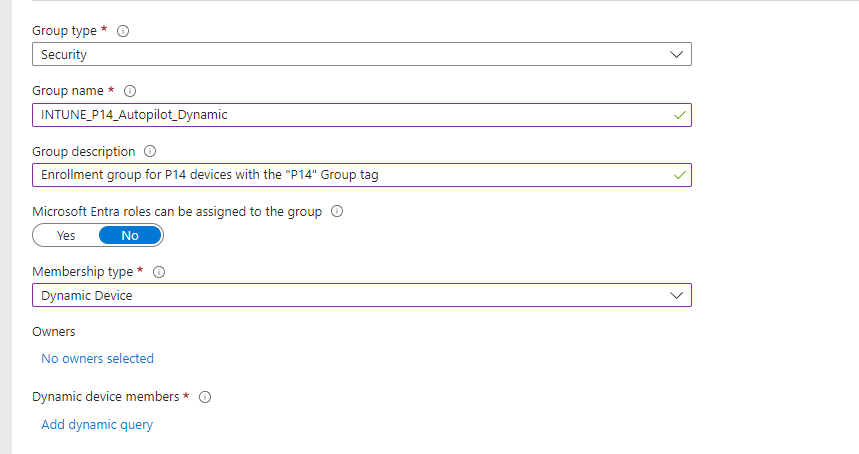
For the dynamic query, utilize the group tag that will be added during the Autopilot steps in the future. (Stay tuned for the blog post going over that step!)
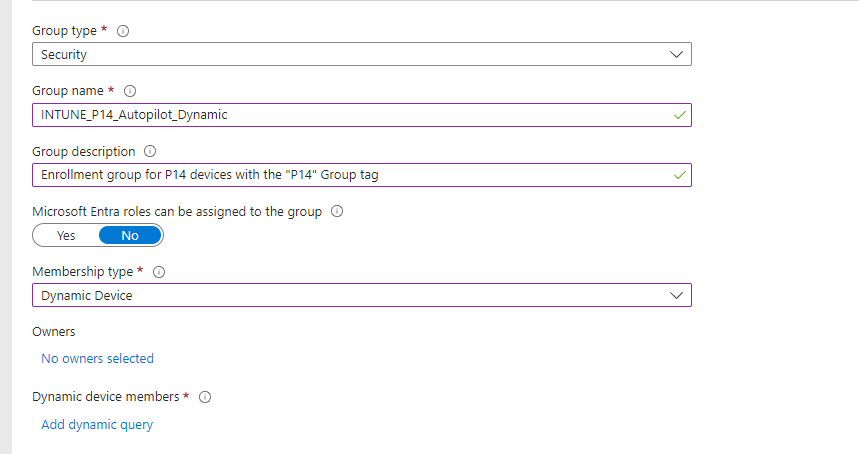
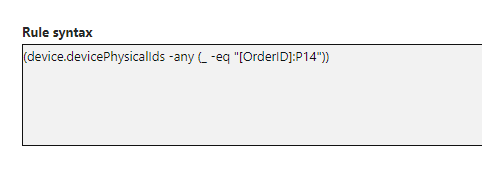
Add the following as the dynamic query rule syntax and save and create the group:
(device.devicePhysicalIds -any (_ -eq "[OrderID]:P14"))
Example:
Creating the Windows Autopilot Deployment Profile
Now that we have our dynamic group set up, let's create the Windows Autopilot deployment profile:
Go to intune.microsoft.com > Devices blade > Enrollment > Deployment Profiles (Under the Windows Autopilot section).
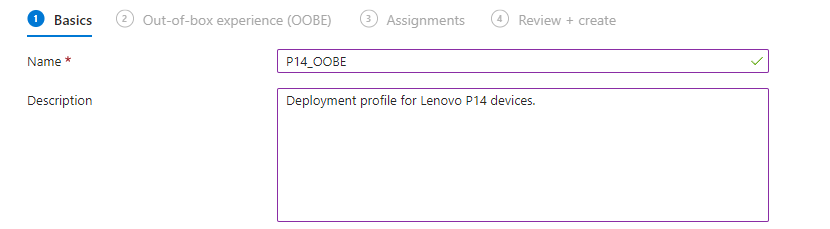
Create a profile for Windows PC. Choose a descriptive and uniform naming convention along with a description.
Example:
Enable “Convert all targeted devices to Autopilot”.
Example:

Configure your Out-Of-Box Experience (OOBE) settings. This will be unique to your environment. In our example, you can see the settings we change from default highlighted in purple.
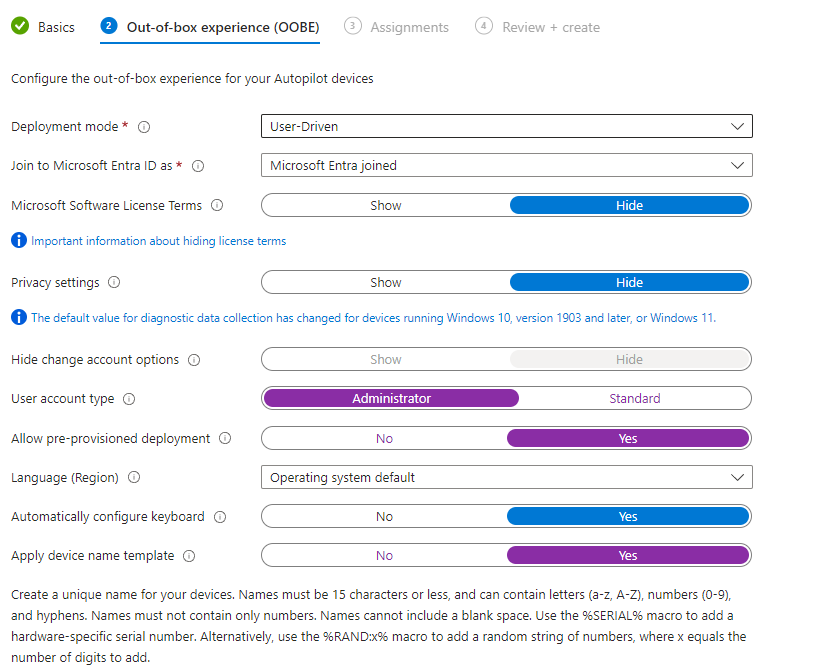
In the device naming section, ensure the devices follow your desired naming convention. In our environment, we use a naming convention of “Model-SerialNumber”.
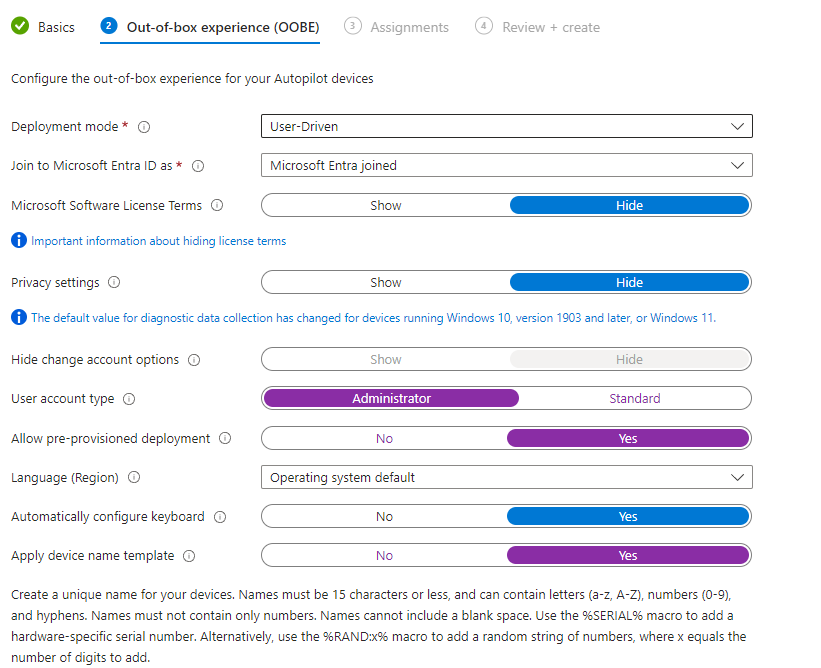
Example:

Assign the groups that will receive this profile and specify any groups to be excluded. Add the dynamic group created earlier in this tutorial.
Example:
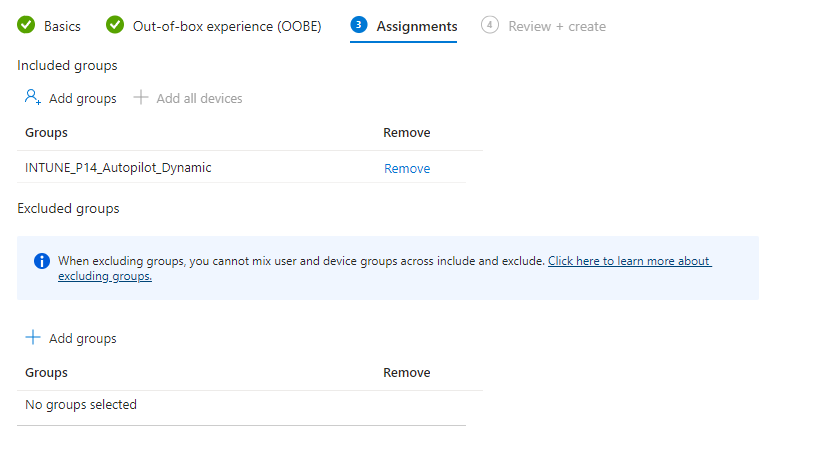
Review the settings, then hit Create.
And there you have it! You've successfully set up a dynamic group that will be populated based on the group tag, and that dynamic device group is assigned the Windows Autopilot Deployment profile.
Stay tuned for more insights and tips on Autopilot provisioning in future posts!